Overview
We have built a small Edge-AI system by combining the Intel® 6th generation Atom® x6000 processor, a CPU for the IoT edge, and Hailo-8, an AI accelerator from Hailo.
We have summarized the steps involved in this project, so if you are interested in a compact/high-performance AI execution environment, please give it a try!
<The products we used in this project are as follows
-
I-Pi SMARC Elkhart Lake (I-Pi SMARC Plus carrier, ADLINK SMARC LEC-EL module, 4GB LPDDR4, 64GB eMMC, temperature extended product (-40°C to 85°C))
Intel® 6th generation Atom® x6000 processor-based I-Pi SMARC Development Kit.
-
M.2 module with Hailo's AI accelerator
1. Setup Procedure
STEP 1-1: Preparation (Hardware)
Refer to the following link of I-Pi SMARC Elkhart Lake, insert and fix Hailo-8 M.2 module(B+M key) to the back of the carrier board.
The finished product will look like the picture below.
The carrier board is 110mm x 110mm, so you can see how small it is.
STEP 1-2: Preliminary preparations (various settings/connections)
Set up the boot device
Set the DIP SW to "0000" as shown in the picture on the left below (1000 is also acceptable / 0110 is not acceptable).
Connect to monitor with HDMI cable
Insert LAN cable
Connect USB mouse/keyboard
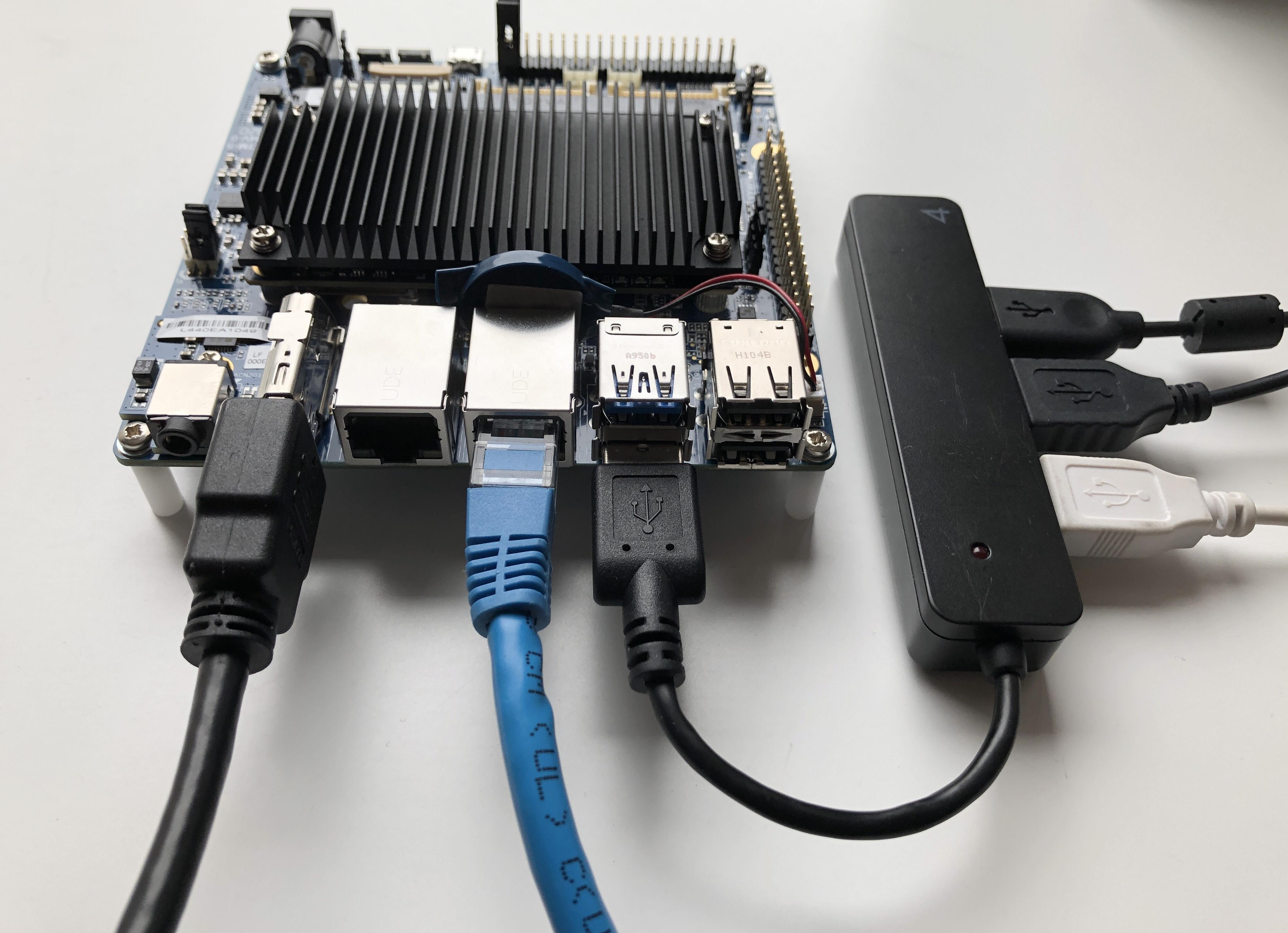
STEP 1-3: Ubuntu Setup
Install Ubuntu 22.04 LTS on the eMMC with built-in SMARC LEC-EL module.
Prepare the Ubuntu 22.04 LTS USB memory installer and plug it into the USB port on the Carrier Board.
Then connect the carrier board's power adapter to boot, and hit the "Esc" key on the keyboard to enter the ADLINK BIOS screen.
On the Save & Exit tab of the BIOS screen, select the USB memory installer under "Boot Override" and press the Enter key to start the Ubuntu installation.
(UEFI: KIOXIA TransMemory in the screen below)
If all goes well, you should see Ubuntu 22.04 on your HDMI monitor as shown below.
Just to be safe, run sudo apt update and upgrade.
sudo apt-get update
sudo apt-get upgrade
Reference:
2. Hailo-related installation
Install Hailo environment.
The following is a brief description of the tools to be installed this time.
- Tappas---a demo application to check various network models
- HailoRT PCIe Dricer --- PCIe driver for Hailo modules
NOTES:
Please note that you will have to download each of these from the Hailo Website below, but please note that registering as a user does not make them available for download.
Please contact us if you are interested.
This time, we use Ver4.14.0 for HailoRT and Ver3.25.0 for Tappas.
STEP 2-1 : Download Hailo RT PCIe driver and Tappas
Download from the following site.
Download HailoRT PCIe Driver
Download the package "HailoRT - PCIe driver Ubuntu package (deb)" after selecting the one on the following screen in Select your system components.
- Product:HailoRT
- Architecture: x86
- OS: Linux
- Python: 3.10
Download Tappas
Download the package "TAPPAS - Ubuntu 22.04 Docker for x86_64" after selecting the following in Setect your system components.
- Product:TAPPAS
- Architecture: x86
- OS:Linux
- Python: 3.10
Create a Hailo directory in Home and save the downloaded file there.
STEP 2-2: Hailo RT PCIe Driver Installation
Follow the guide below to install.
The following packages are specified as necessary, so install them first with apt.
- build-essential package (needed to compile the PCIe driver)
- (Optional) bison, flex, libelf-dev and dkms packages (needed to register the PCIe driver using KMS)
- (Optional) curl (needed to download the firmware when installing without the PCIe driver)
- (Optional) CMake (needed to compile the HailoRT examples)
- (Optional) pip and virtualenv (needed for pyhailort)
- (Optional) systemd (needed for Multi-Process service)
sudo apt install build-essential bison flex libelf-de dkms curl pip virtualenv
Next, install only the PCIe Driver.
Specify the downloaded file hailort-pcie-driver_4.14.0_all.deb and install.
On the way, you will be asked if you want to use DKMS, type "Y" to proceed.
 cd Hailo
sudo dpkg --install hailort-pcie-driver_4.14.0_all.deb
Reboot Ubuntu after the installation is complete.
reboot
STEP 2-3 : Tappas installation
This time, we will use a pre-built Docker image.
Go to the Hailo directory and follow the guide below to install.
cd Hailo
 # Install curl
sudo apt-get install -y curl

# Get and install docker
curl -fsSL https://get.docker.com -o get-docker.sh
sh get-docker.sh

# Add your user ( who has root privileges) to the Docker group
sudo usermod -aG docker $USER

# Reboot/log out in order to apply the changes to the group
sudo reboot
Right-click on the tappas compressed file that has already been downloaded and extract it with "Extract Here".
Two files will be extracted.
hailo-docker-tappas-v3.25.0.tar is the pre-built docker image.
After moving to the directory where the unzipped files are located, run the script specifying the docker image.
cd Hailo/tappas_3.25.0_ubuntu22_docker_x86_64/
. /run_tappas_docker.sh --tappas-image hailo-docker-tappas-v3.25.0.tar
It will take some time to download the image, but once the container is successfully launched, you will see the following screen.
If you actually run Tappas, you can confirm the operation as shown in the right figure below.
 cd apps/h8/gstreamer/general/detection/
. /detection.sh --show-fps
Summary
We built the Edge-AI system on an Intel Atom® processor, aiming for a small but uncompromised performance, and it was unexpectedly easy to build.
Thank you for reading this article.